
Smarter Battery
A battery monitoring utility for Windows notebooks and tablets
Smarter Battery is a battery monitoring utility for portable computers, intended to provide all the data of your battery, to help prolong its life and save its energy. It shows you the evolution of the battery's capacity during the charge / discharge cycles and computes a few important battery parameters, such as the wear level and discharge cycles count. This program continuously reads the battery data, making a prediction for the time remaining; it also features two alarms, for low and critical battery capacity, triggered by either the time remaining or the capacity percentage.
The evolution of battery capacity is graphically displayed for a longer period of time, up to 16 hours, so the complete charge or discharge cycles can be easily visualized and analyzed. Both Calibration and Fast Discharge procedures were updated to perform better on Windows laptops or tablets. Moreover, a battery gadget can be displayed by this utility; it has many format options and offers you a fast, clear view on the current battery's state of charge.
What's new in 7.2?
- Redesigned Calibration procedure, to work with the new Windows 11 editions;
- S and H key commands added (to enable the Standby and Hibernate modes, respectively);
- Charging mode is now correctly displayed on all laptops.
What's new in 7.1?
- Up to four batteries can be registered at a time (four serial numbers);
- Redesigned Calibration and Fast Discharge procedures;
- Optimized code for Windows 8 and 10, either laptop or tablet use;
- A new ergonomic design, more information on each page;
- Accurate computing for the battery wear level and discharge cycles;
- Larger period of time (up to 16 hours) for the battery graph (capacity vs. time);
- Brightness control and Restart commands were added to the battery menu.
How it works?
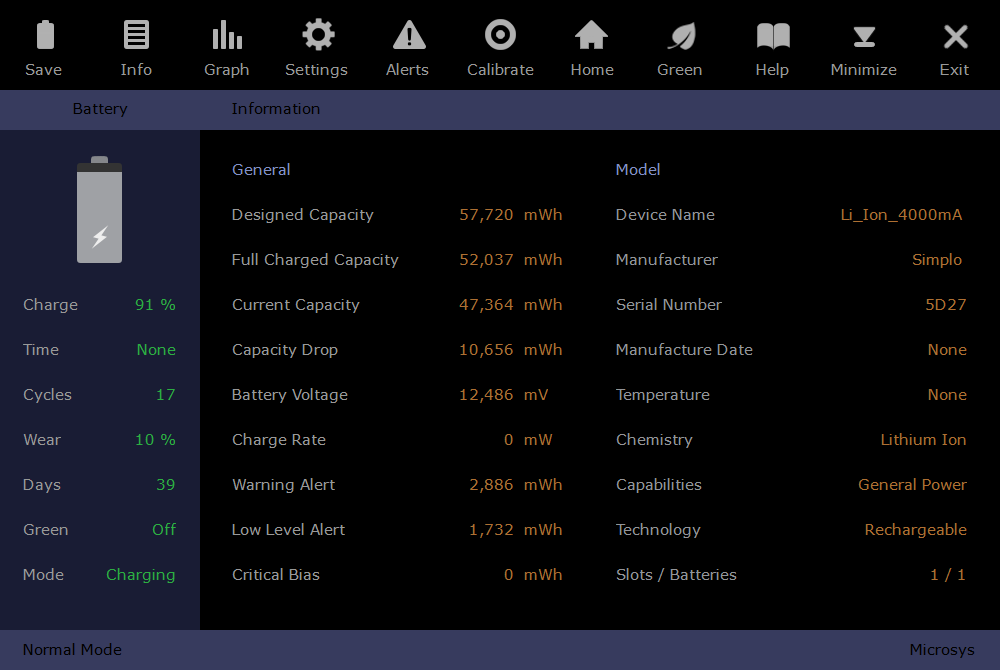
The Information page is automatically displayed when this utility is launched and maximized. In the left side fields are displayed a few important parameters of the system battery (this is now common to all pages), while the right side ones contain if fact the general and model information. Above the left panel, there is the Battery # link; the # number, if it's displayed, indicates which battery is currently selected. A click on this link changes the selected pack and all the other information will be updated accordingly. When the application starts, first battery found in your system becomes the current one and it will be used as reference.
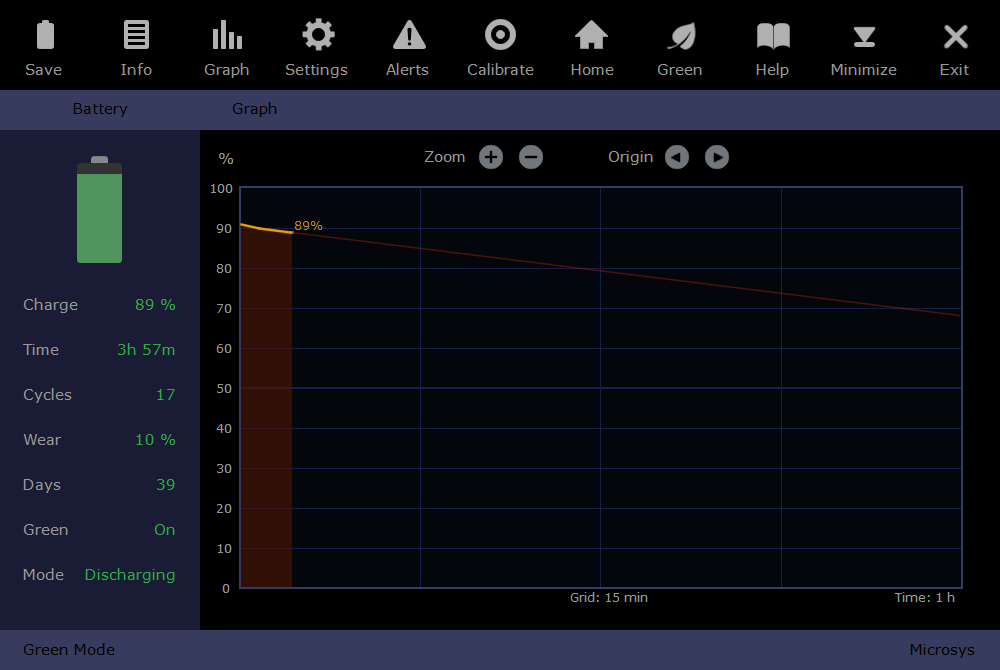
The Graph page offers you an easy way to see and understand the evolution of the battery capacity over time. A thick orange line is drawn in a capacity (percentage) vs. time coordinate system for a default interval of 60 minutes. This graph can be saved as jpg picture (automatically named and numbered SBshot1, 2 and so on) by using the Save button. If the battery Mode is Discharging, a thin red line will be displayed in addition; it represents a possible path followed by the battery power, a path which has resulted from the time remaining or which is estimated by the software. For a good battery, this red line should remain parallel with the orange one most of the time, having no big angle changes (drops in capacity).
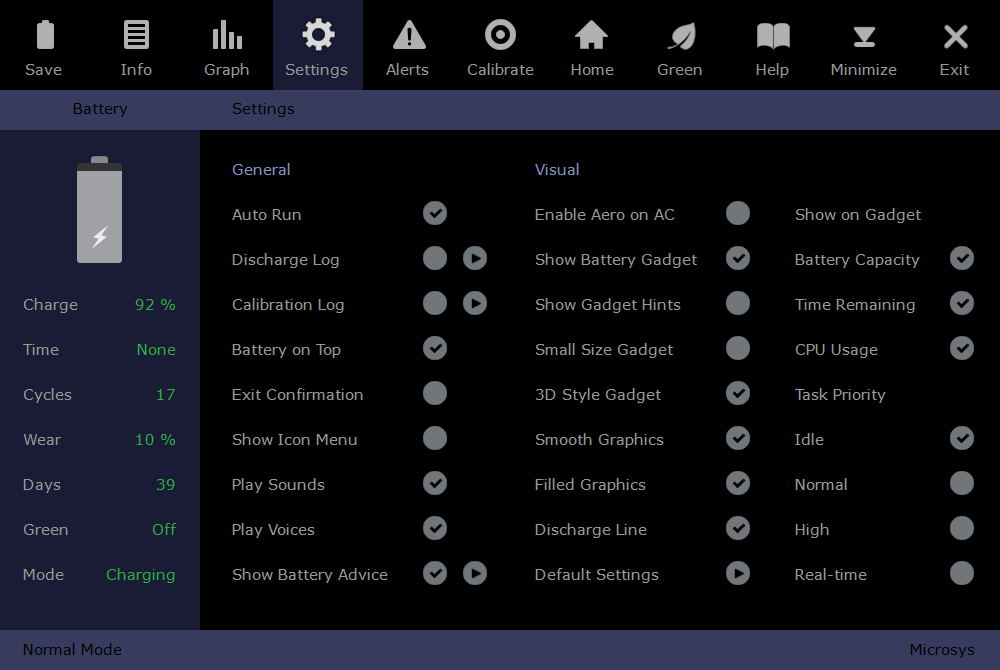
The Settings page contains all the program options. If a certain option is modified here, it is instantly executed; however, if you want to keep that change in the future sessions, you must save the settings using the Save button from the upper-left side.
The Alerts page contains two customizable battery level alerts (Warning and Critical), both of them being independent from the Windows' ones. If an option is modified here, it is instantly executed; you can save all these alert settings by using the Save button from the upper-left side.
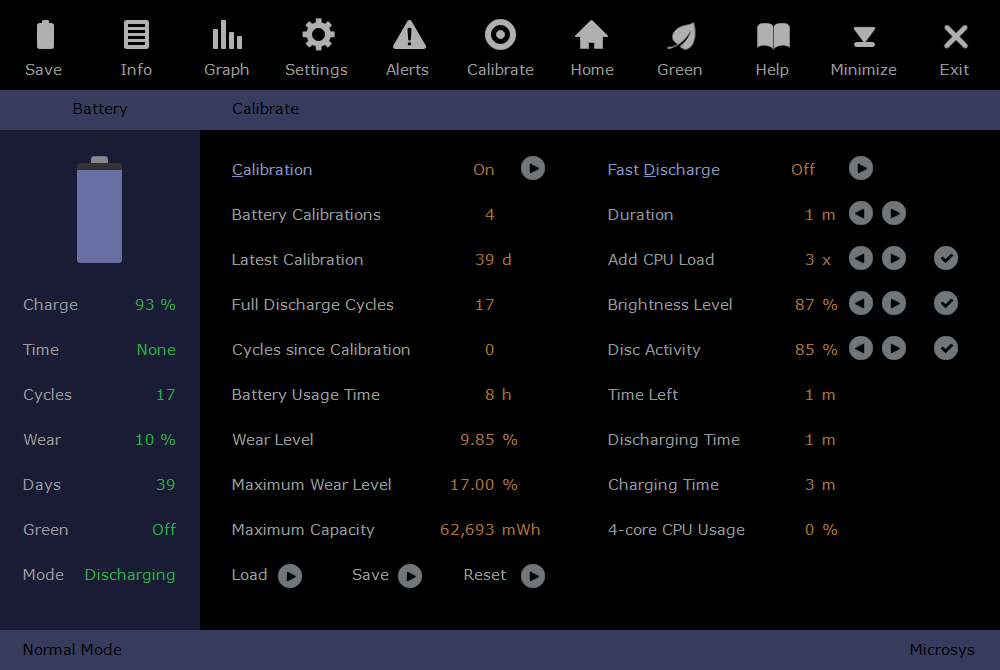
Calibrate page: Under the Calibration title, there are a few statistical information of the first system battery, such as: the Wear Levels, Full Discharge Cycles, Usage Time and other calibration values; they give you the complete picture of your battery state and life. In order to keep all these data accurate, this utility must be kept running all the time on your computer, having the first battery selected. A Fast Discharge option is also present on this page.
The Home Page shows several buttons that directly connect you to the Home, Download and Purchase Pages of the program, as well as the customer's Registration data. There is also a button facilitating the e-mail communication with us; it automatically launches your default e-mail software, if installed, allowing you to send us the Battery Code.
This program is a demo version. You can test it ten times, each time for 15 minutes; to continue monitoring your battery after this period, you have to buy it. Once you made the online payment, send us an e-mail containing your notebook's battery code(s). To do this run the program, hit the Home button and then either:
- click "Email code" and, if there is an e-mail client installed, press send;
- press "Copy the Battery Code" button, then paste the string to the e-mail text body;
- open the file BatteryCode.txt from the program's folder (Documents\Microsys\Smarter Battery), and select / copy the code, then paste it in the new e-mail body.
The program license allows you to use Smarter Battery on a single computer, for an unlimited period of time. We will send you a second registration, for free, in case you change the notebook battery.
Questions and answers
Q. Can I simply
install a new version over the old one, in its folder?
A. Yes, you can. But we recommend to quit the utility if running,
and uninstall the old version first.
Q. The settings and the battery data will be erased if I uninstall
this utility?
A. No, they are kept and will be imported in the new version.
Q. May I install back the old version after testing a newer one?
A. Sure, and its settings and battery data are preserved.
Q. The program registration I received may be used for future
versions?
A. Yes, until we specify otherwise and it is not blacklisted.
Q. How can I delete all battery data if uninstalling?
A. You have to delete the entire program folder (Documents\Microsys\Smarter
Battery). But any other files you saved there, text or pictures,
will be also deleted.
Q. Can I remove the power system icon?
A. Yes, if using Smarter Battery, the system power icon can be
turned off (Windows 7,8,10).
Smart battery tips
Here are simple tips,
for the most common lithium-ion batteries, allowing you find out how
to prolong their life, whether or not they are intensively used or
stored for long periods of time. Many manufactures specify the life
of these batteries between 300 and 500 discharge/charge cycles,
meaning 2-3 years of regular use in a laptop. Anyway, the battery
capacity decreases with the number of full discharge cycles. To
prolong the battery life, in general, you have to:
- perform partial discharge cycles; we recommend to not continue
them under 7% of capacity;
- avoid high temperature and high currents; you may take off the
pack when laptop processor/graphics becomes hot;
- do not store it fully charged; discharge it to 40-50% of capacity
and place it in a cool place;
- calibrate it to have accurate readings, once every 25-30 discharge
cycles or every 2-3 months;
- periodically clean the laptop air vents (and do not cover them),
in order to prevent the laptop parts overheating;
- check the software or the laptop BIOS controlling the cooling
fans, to ensure proper functioning.
Modern battery controllers solved many of these conditions; they
have temperature sensors, to avoid overheating during charging and
they also keep some energy reserve in the cells to control the cycle
range.
Glossary
Unique Id:
the concatenation of the manufacturer's name, device name, date of
manufacture, and the serial number;
Manufacture Date: indicates the manufacturing date of
the battery;
Estimated Time: specifies estimated battery run time,
in seconds, based on the present rate of drain;
Temperature: shows the battery's current temperature,
in Celsius degree (°C);
Chemistry: indicates the battery's chemistry;
Capabilities: indicates the way the battery can provide
power to the system;
Technology: battery's rechargeable attribute;
Designed Capacity: theoretical capacity of a new
battery;
Full Charged Capacity: battery's current fully charged
capacity;
Low Battery alert: manufacturer's suggestion of the
capacity when a low battery alert should occur;
Warning alert: manufacturer's suggestion of the
capacity when a warning battery alert should occur;
Critical Bias: a bias from zero, which is applied to
the battery reporting capacity;
Cycle Count: number of charge/discharge cycles the
battery has experienced (zero when not supported);
Current Capacity: current battery capacity, in mWh;
Charge Rate: current rate of battery charge or
discharge.
Current Voltage: battery voltage across the battery
terminals, in millivolts;
Battery Mode: indicates how the battery currently
operates;